
Redact Text
Cover the message, keep the photo
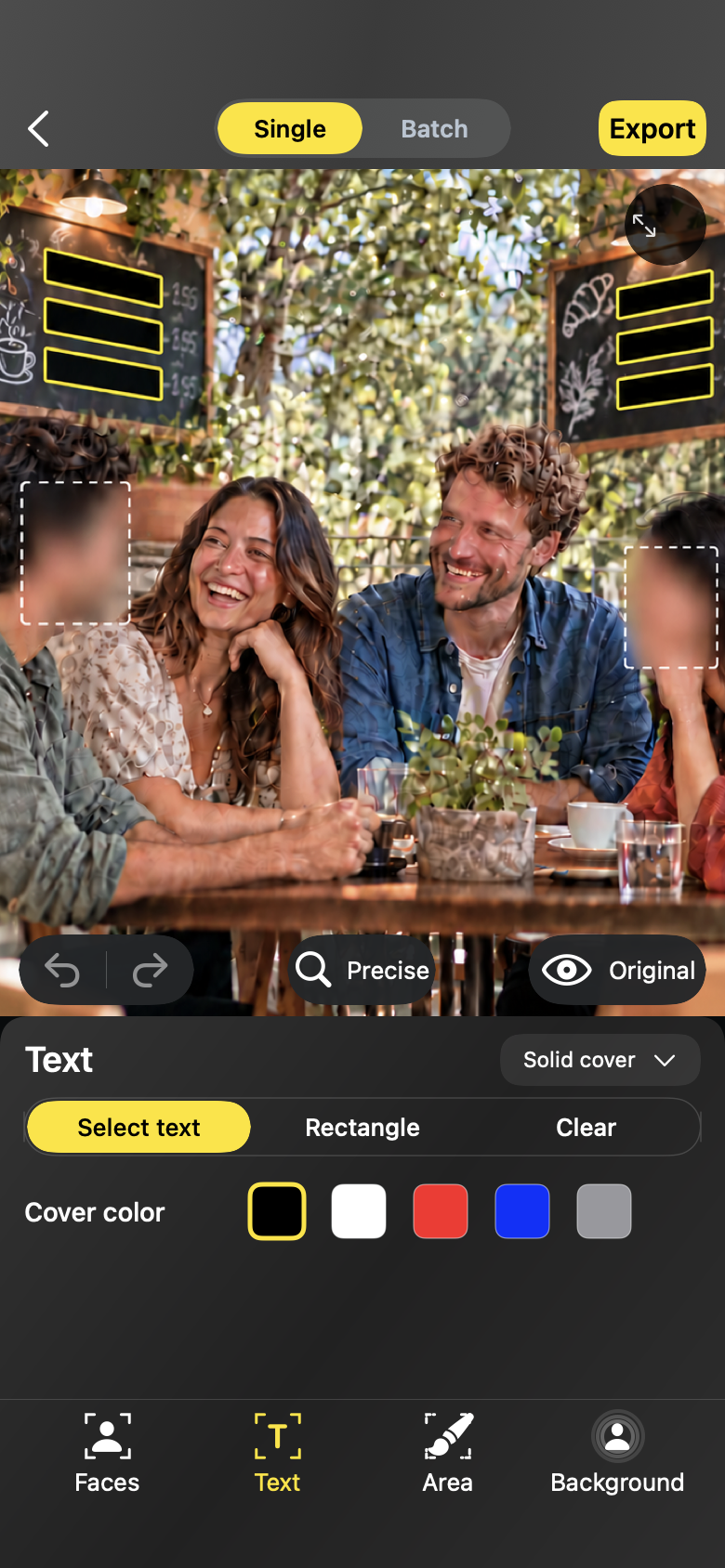
Blur Photo finds the text in your photo and turns every line into a block you can cover in a tap. The screenshot stays useful; the words don't travel.
Workflow
Text redaction
01
Switch to Redact Text
Open the photo and choose Redact Text. Every detected line of text becomes a selectable block on the photo.
02
Tap the blocks to cover
Tap a block to hide that message, name or number — tap again to bring it back. Selected blocks show a check mark.
03
Pick the effect and export
Use blur, pixel or solid cover from the same effect library, compare with the original, and export a clean copy.
Redact Text
Made for the photos you actually share
- Screenshots with messages, names or account details
- Delivery labels and mail with an address or barcode
- Documents and notes photographed on a desk
Redact Text
Questions, answered plainly
- Text detection runs locally and may miss stylized or heavily rotated text — review the photo before export.
- Text blocks that are missed can be covered with Hide Any Area.
FAQ
Questions, answered plainly
Does the text leave my device for detection?
No. Text detection runs on your iPhone like the rest of the editor — the photo is never uploaded.
Can I cover only part of a line?
Cover the block first, or use Hide Any Area with the brush to cover exactly the characters you want hidden.
The editor