Cover
A cover style that hides the detail, not the photo
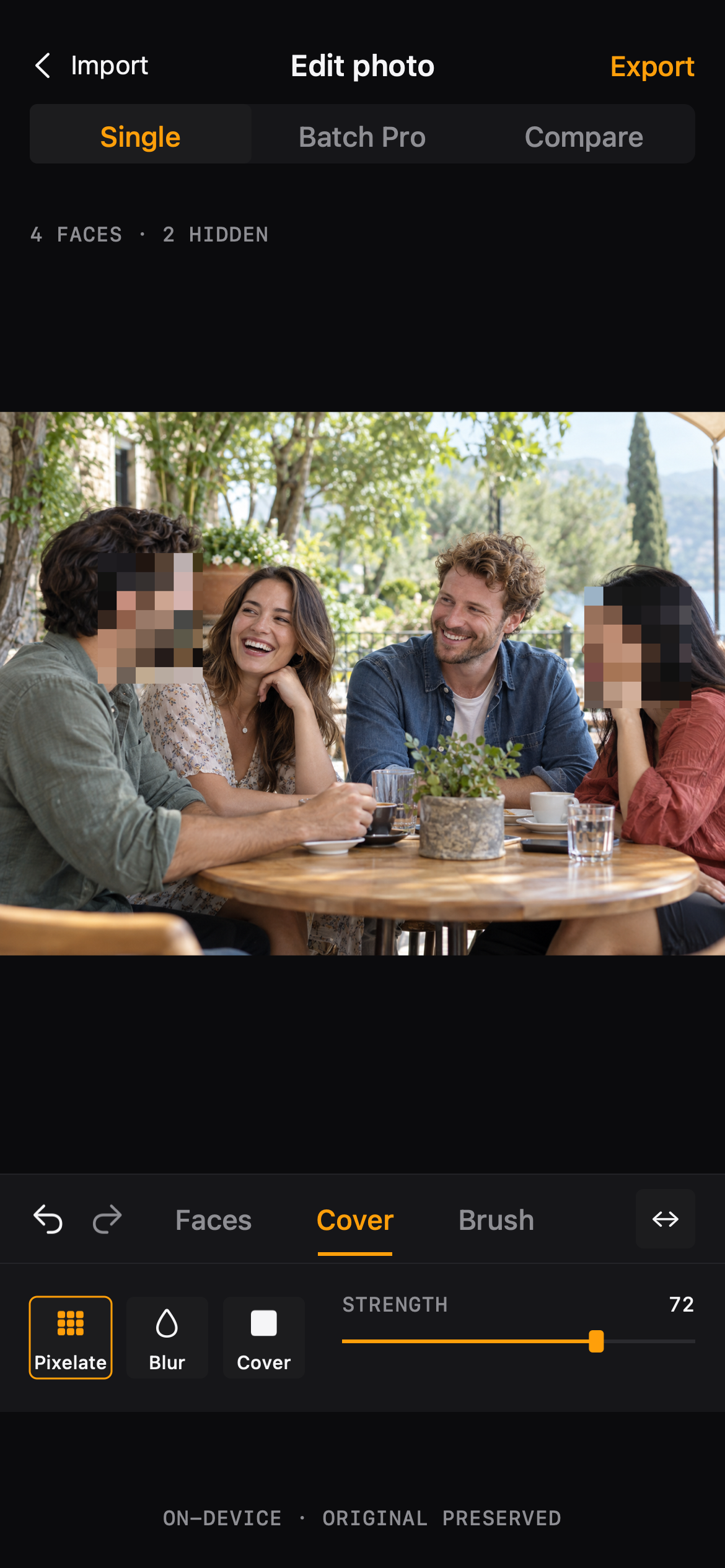
Choose how an area is covered and how strongly. Preview live on the photo, and reuse the same look across pictures.
Workflow
Cover styles and strength
01
Pick a style
Switch between cover styles in the tool bar. The preview updates on the photo immediately.
02
Set the strength
The strength slider controls how completely the area is hidden, from a gentle texture to an opaque pixel block.
03
Save it as a preset (Pro)
Blur Photo Pro remembers your preferred cover style so the next photo starts where you left off.
Cover
Made for the photos you actually share
- Keeping a consistent look across photos of the same event
- Hiding a detail just enough to keep the photo natural
- Reusing a trusted setting instead of dialing it in every time
Cover
Questions, answered plainly
- A stronger cover hides more; there is no way to recover detail later, so compare before export.
- Manual areas painted with the Brush can keep their own style, separate from the face style.
FAQ
Questions, answered plainly
Does the style copy over to other photos in a batch?
Applying a style copies the effect type and its parameters only. Each photo keeps its own face selection and painted areas.
The editor