Faces
Find every face. Hide only the ones you choose.
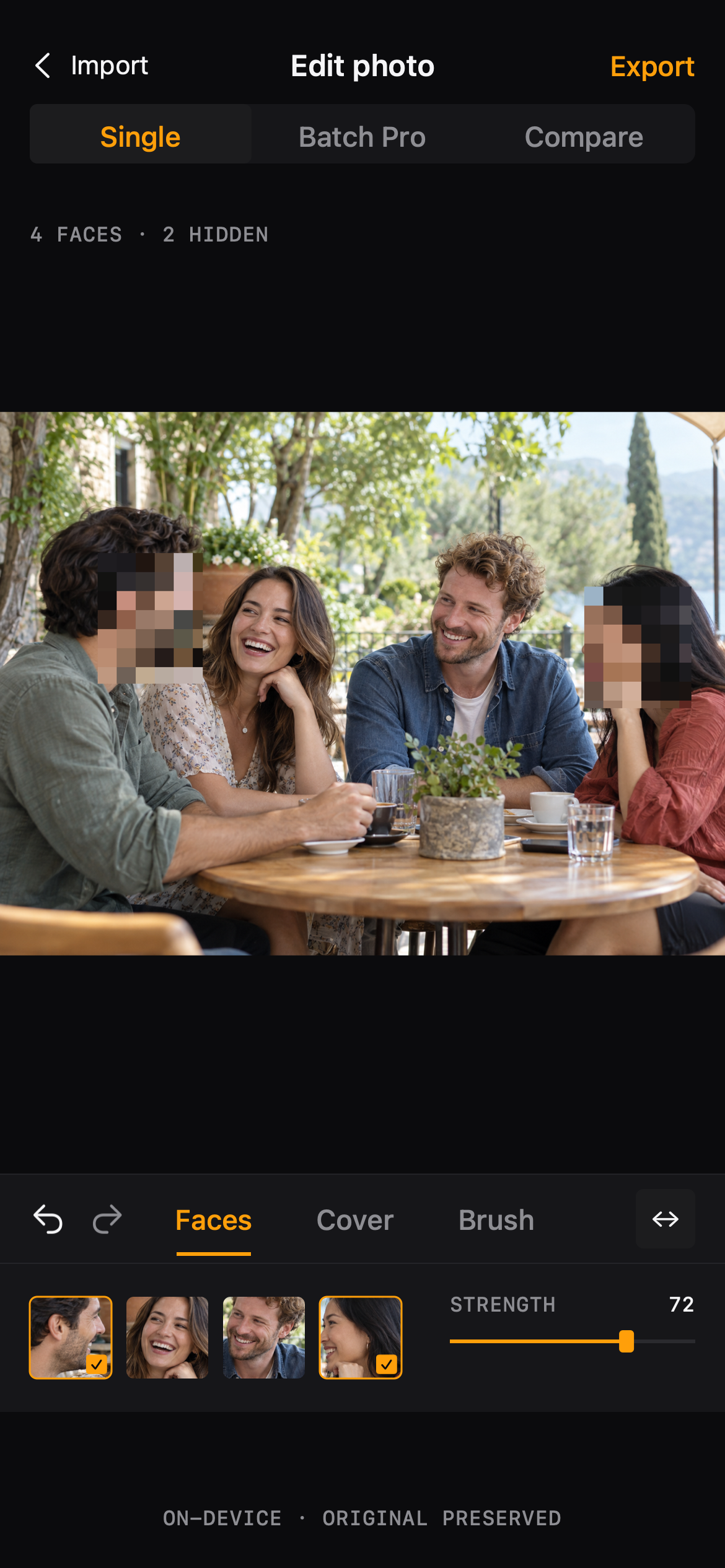
Blur Photo scans the photo on your device and turns each detected face into a card you can tap. Detection is a suggestion — the decision is always yours.
Workflow
Automatic face detection
01
Open a photo
Pick a photo from your library. The editor opens in Single mode with Faces selected by default.
02
Tap the faces to hide
Each detected face appears as a thumbnail card. Tap a card to cover or unhide that face; selected cards show a check mark.
03
Tune the strength
The strength slider runs from a soft blur to a full pixel cover. Undo and redo are one tap away.
Faces
Made for the photos you actually share
- Street and travel photos with strangers in frame
- Group shots where only some people should appear
- Photos of kids that are fine to keep, not to publish
Faces
Questions, answered plainly
- Detection runs locally and is a starting point, not a guarantee — always review before export.
- If no face is found, use the Brush to cover the area manually.
FAQ
Questions, answered plainly
Can I hide just one face in a group photo?
Yes. Faces are selected individually — tap only the cards you want covered and leave the rest visible.
What happens when I undo after covering a face?
Undo removes the change as expected. In batch editing, any change to a photo marks it as needing review again, so you re-check the result before export.
The editor