Menu
Blur Photo

On-device · Original preserved

Blur faces before you share.

Blur Photo finds faces in your pictures so you can hide them in a tap — or cover anything else by hand. You export a new copy; the photo you shot stays exactly as it was.

Free for single-photo editing · iPhone

  • Processed on your iPhone
  • Original photo never overwritten
  • Location data removable on export
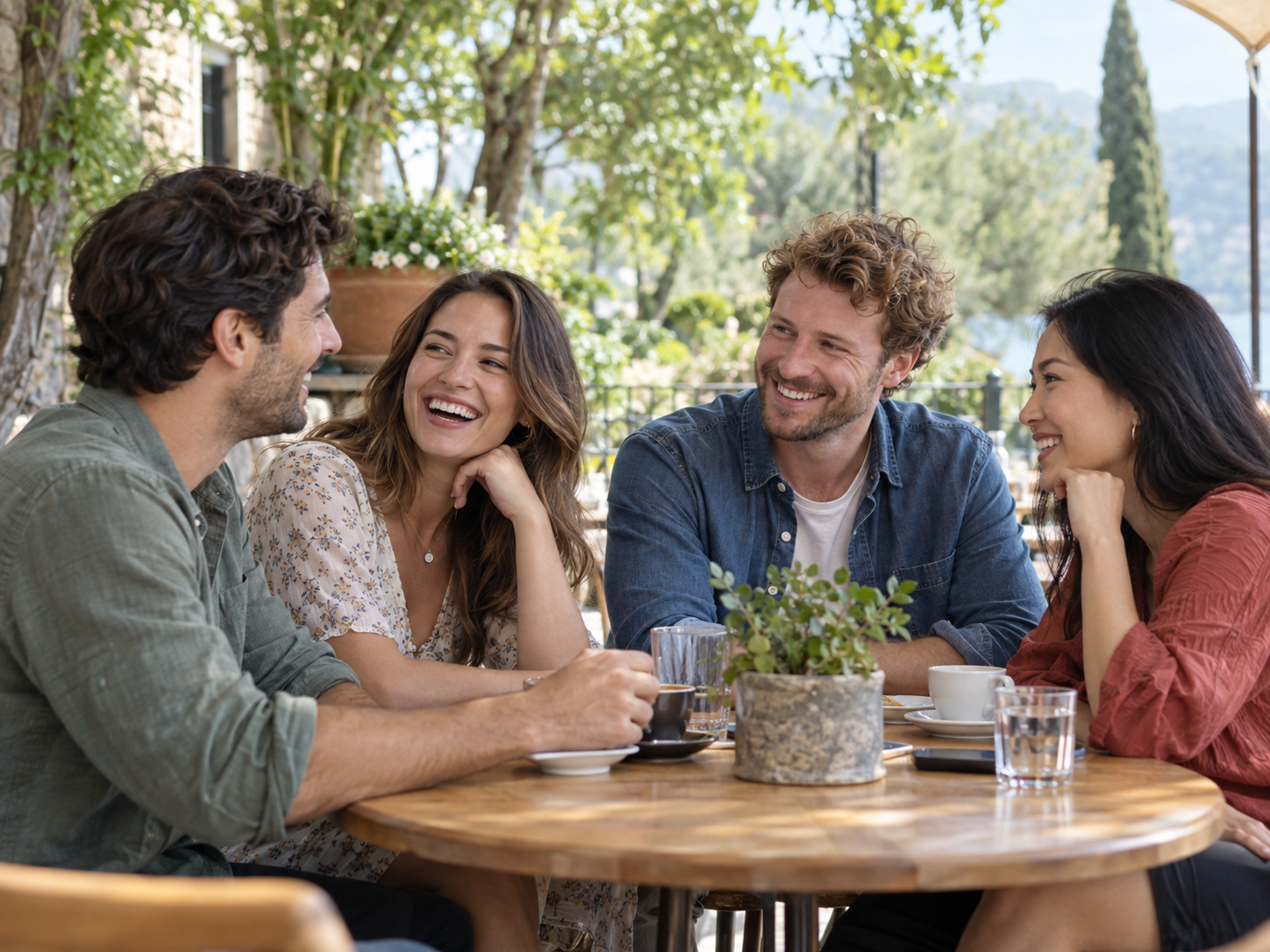
OriginalBlurredDrag to compare

The editor

Three tools, one job: hide what should stay private.

Everything happens in a single darkroom-style editor. Pick faces, swap cover styles, paint by hand — then compare and export.

Detect faces, hide them in a tap

Faces

Detect faces, hide them in a tap

Turn a crowded photo into a shareable one in seconds.

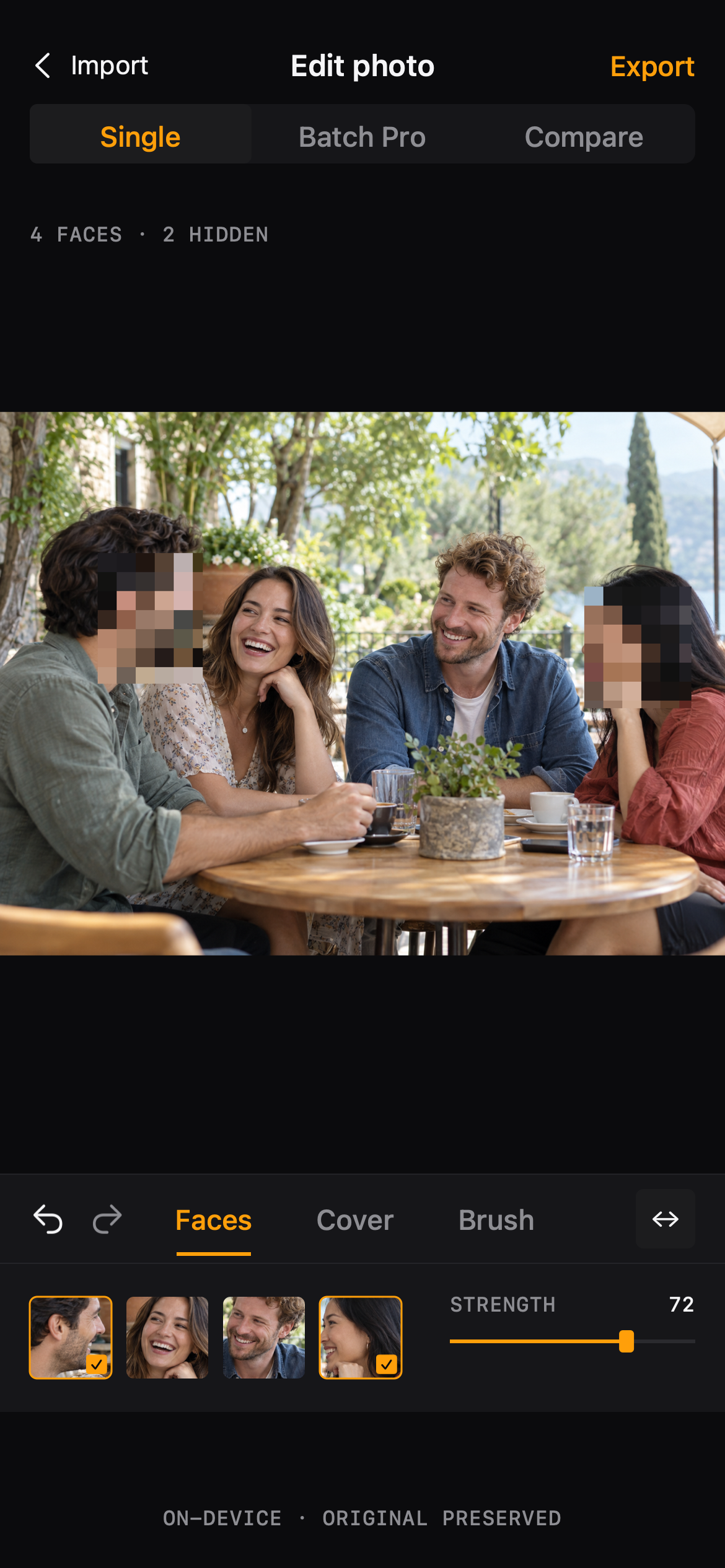
Blur Photo looks for faces in the photo and shows each one as a card. Tap the ones you want to hide and they are covered right away — the strength slider controls how much.

  • Each face is selectable on its own
  • Strength from soft blur to full pixel cover
  • Undo and redo until it looks right
How face detection works
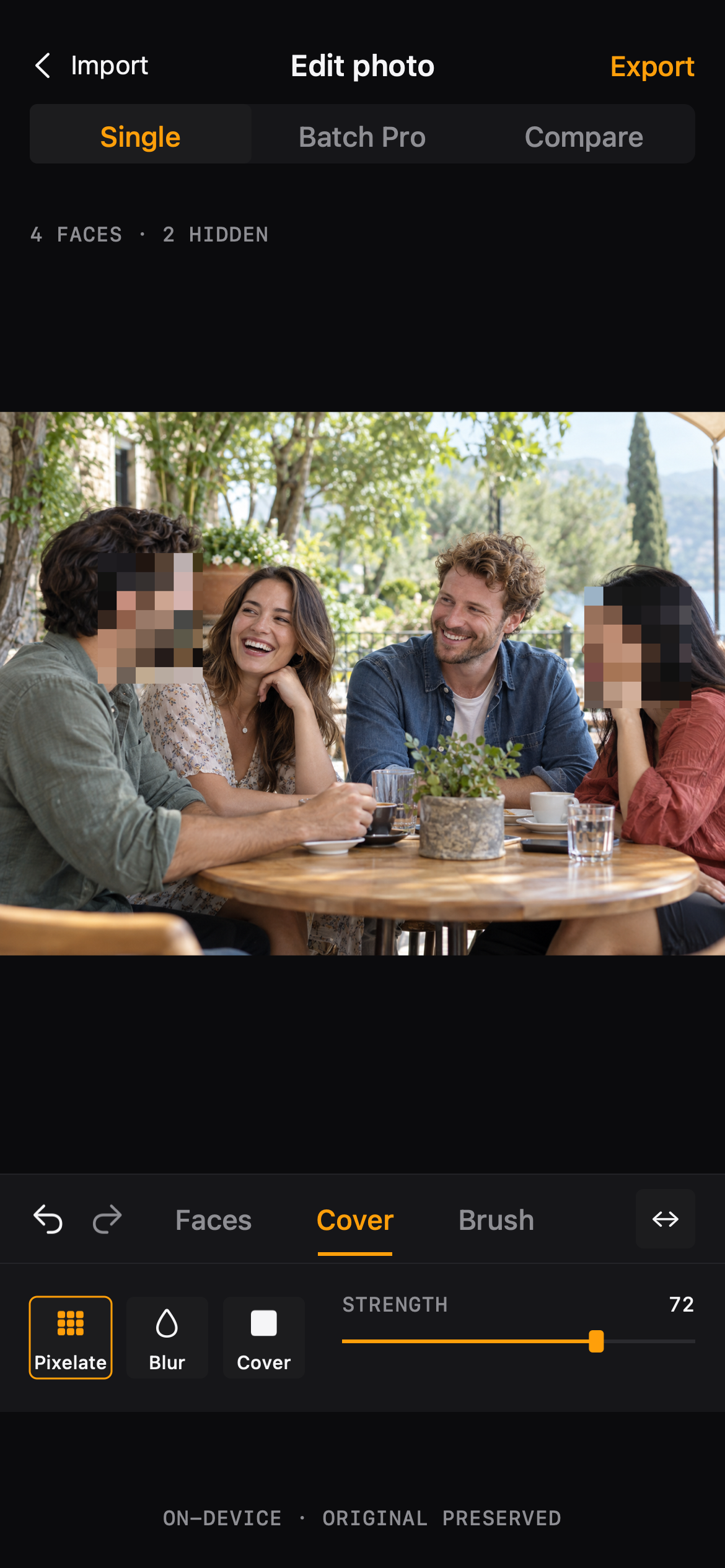
Cover styles you can dial in

Cover

Cover styles you can dial in

Pick a look that hides the detail without ruining the photo.

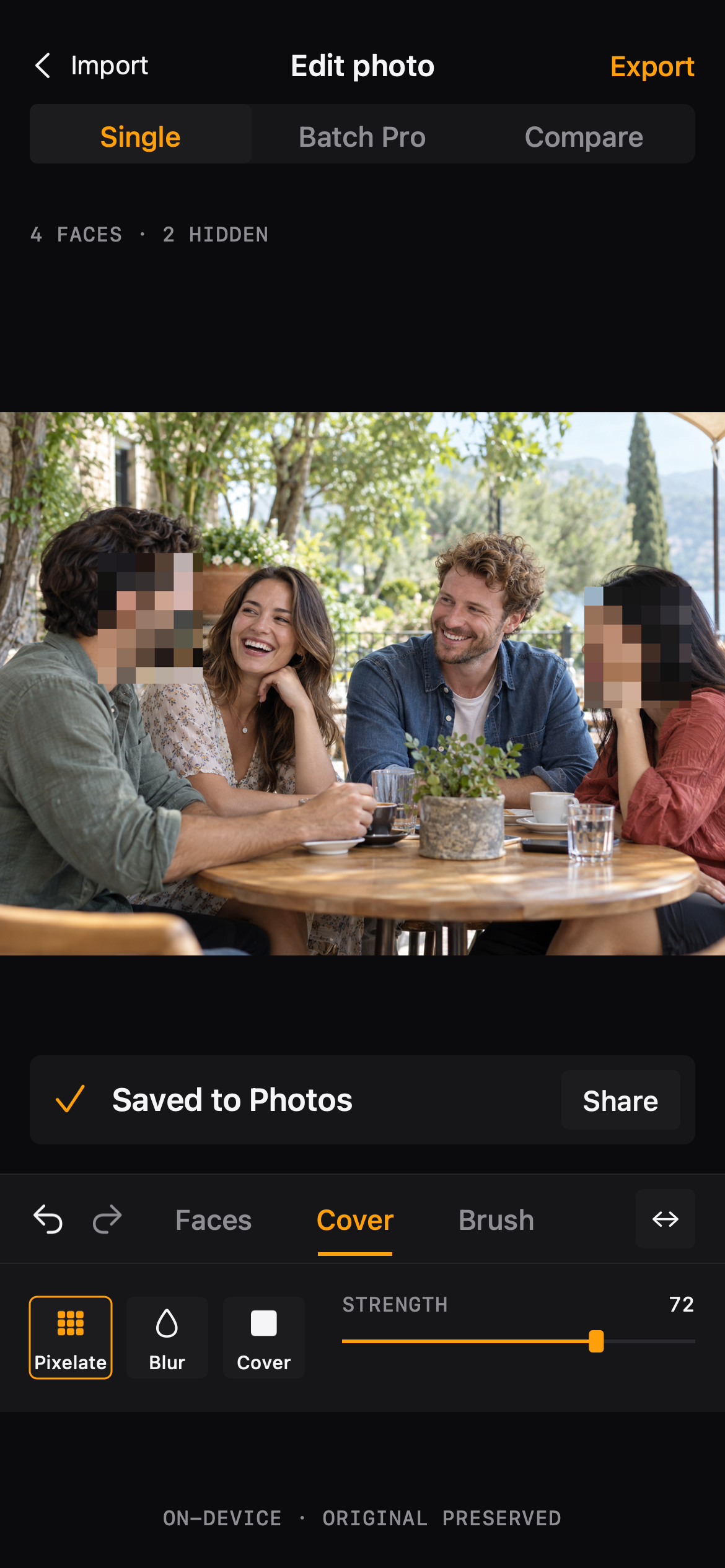
Switch between cover styles and tune the strength with a live slider. The same style can be reused across photos so a set of pictures stays consistent.

  • Pixelate and mosaic style covers
  • Live strength preview on the photo
  • Saved presets in Blur Photo Pro
Explore cover styles
A brush for everything that isn't a face

Brush

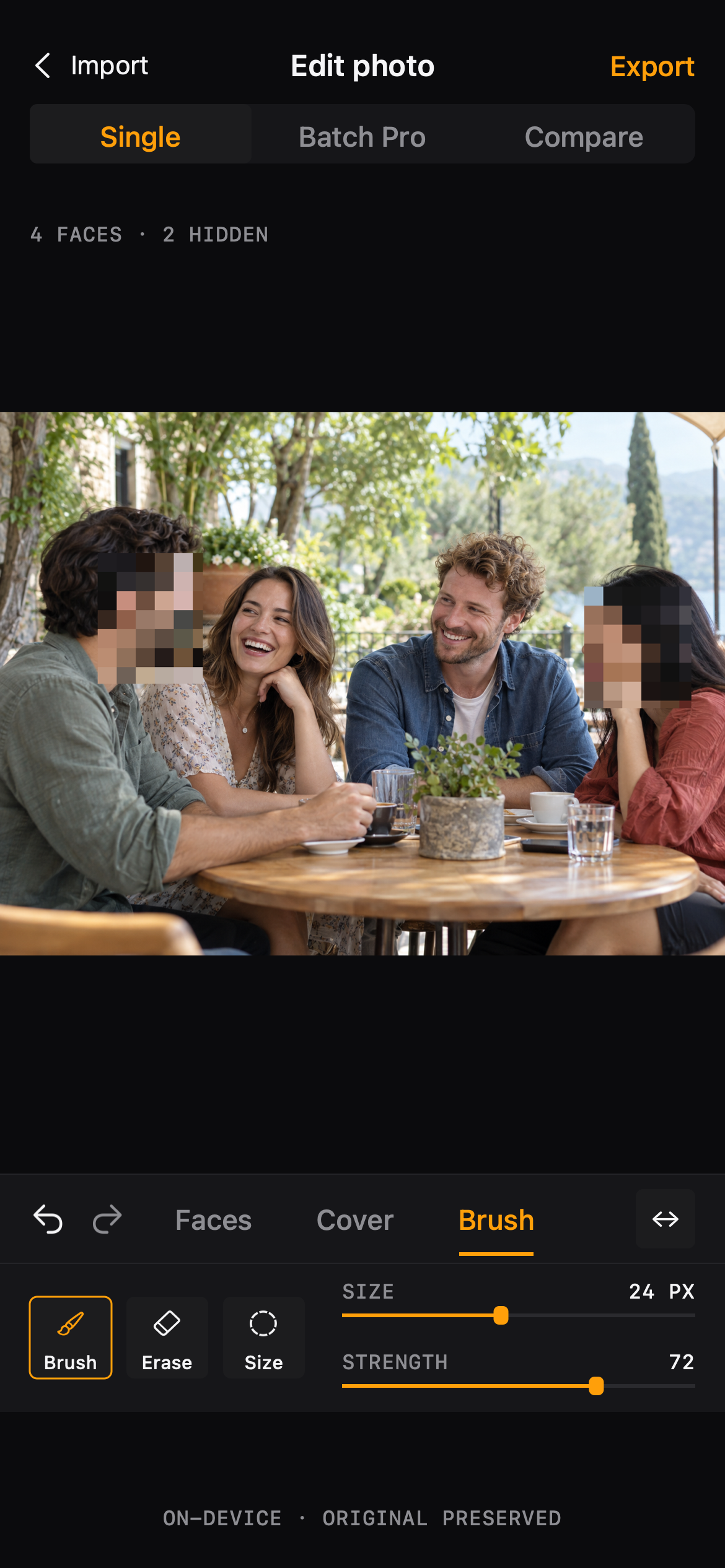
A brush for everything that isn't a face

Screens, plates, documents, tattoos — cover anything by hand.

Drag over any area to cover it. Brush is the fallback when no face is found, and the tool for details that matter only to you.

  • Adjustable brush size
  • Works together with face selection
  • Independent style per painted area
See the brush in action
One style, many photos

Batch Pro

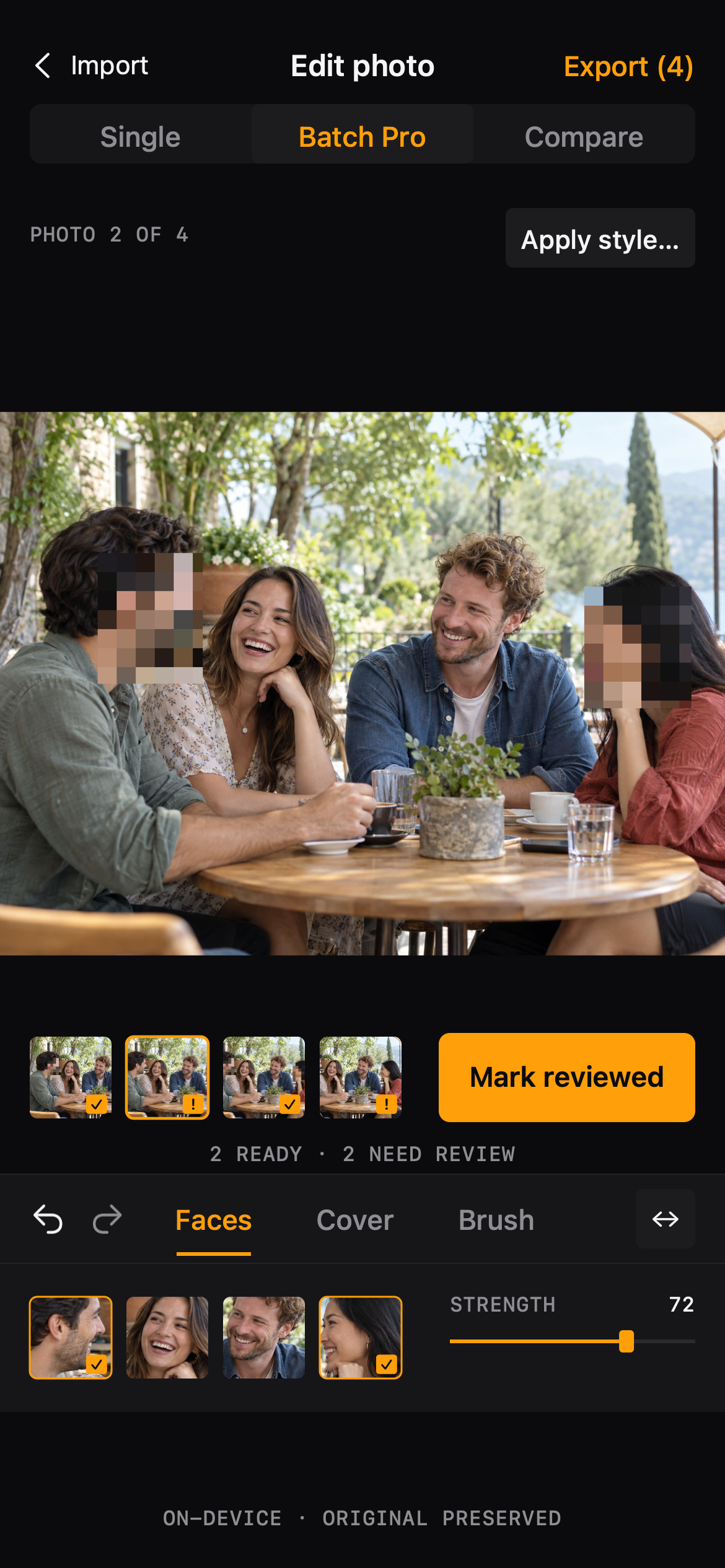
One style, many photos

Apply a cover style to a whole set, then review each photo.

Edit one photo, apply its style to the rest of the batch, and check each result before anything is saved. Exporting more than one photo is part of Blur Photo Pro.

  • Apply style to selected photos or the whole batch
  • Per-photo review gate before export
  • Batch export with saved results list
How Batch Pro works
Check it, then save a clean copy

Compare & Export

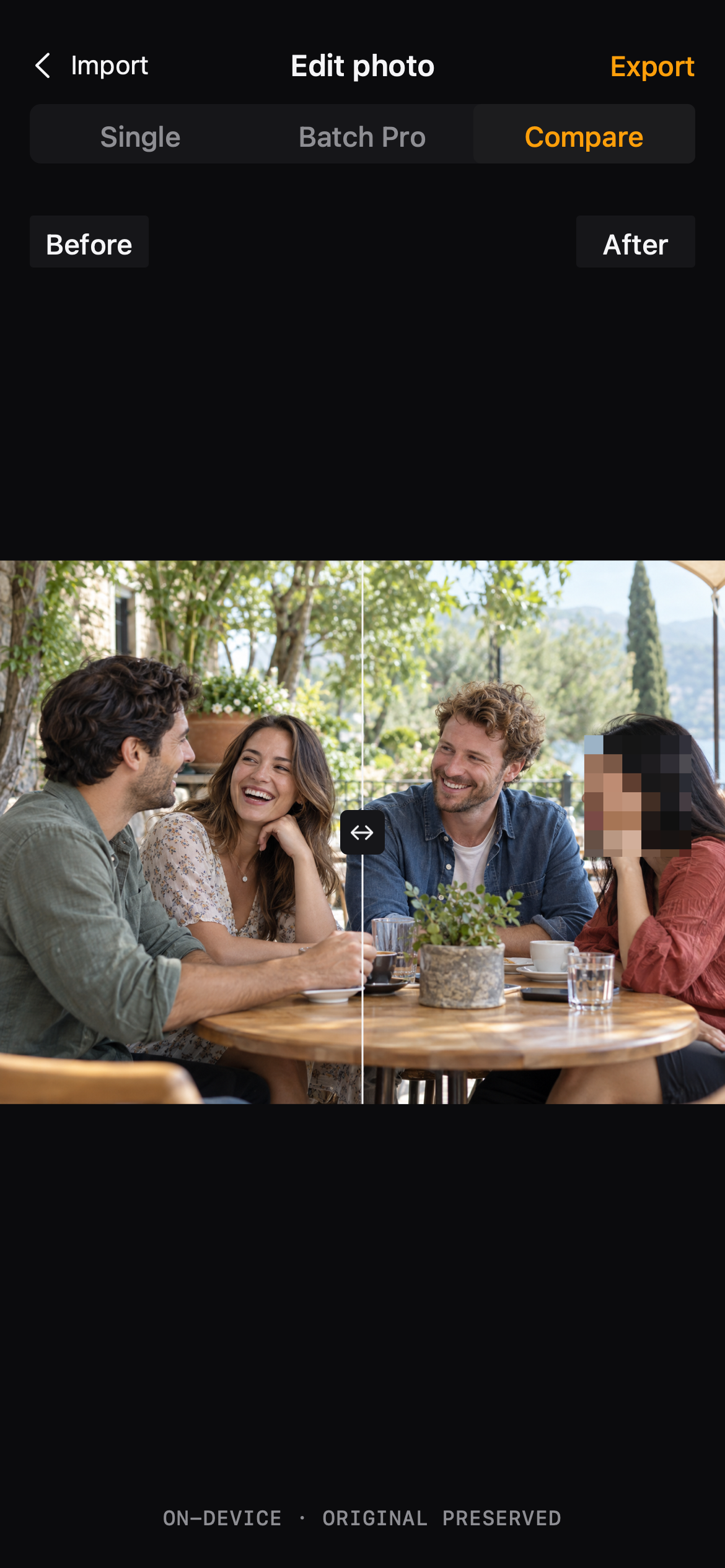
Check it, then save a clean copy

Share knowing what changed — and what didn't.

Compare shows the edited photo against the original before you commit. Export saves a new copy with the resolution, format and quality you choose, and strips location data if you want.

  • Side-by-side before / after compare
  • Resolution, JPEG or PNG, quality
  • Remove location data on export
Export controls explained

Workflow

From photo to share in four steps

No accounts, no uploads. Pick a photo, cover what you want, check the result, save a copy.

  1. 01

    Import

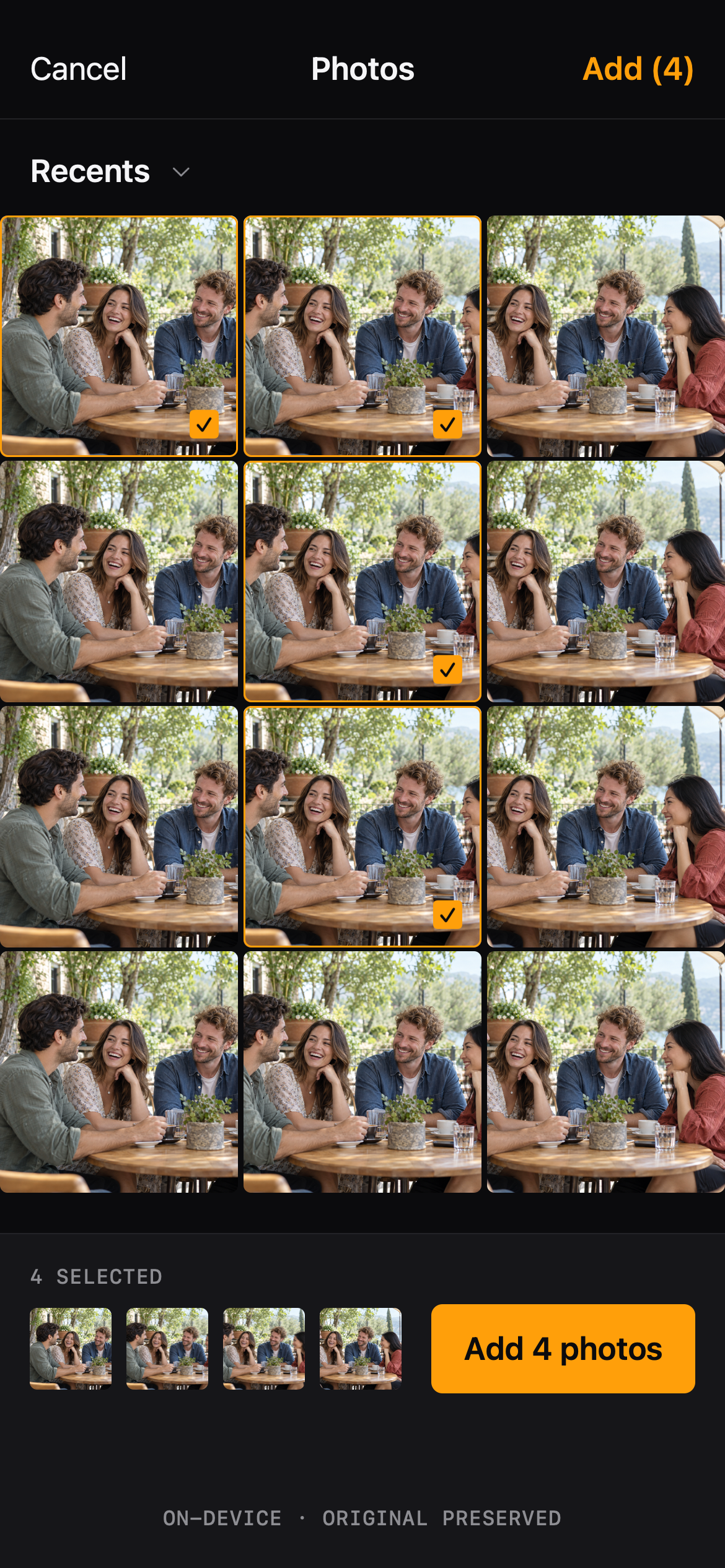
    Choose one photo or a handful from your library. Nothing is uploaded — editing happens on your iPhone.

    Import
  2. 02

    Cover

    Tap detected faces, pick a cover style, or paint with the brush. Strength is adjustable at any time.

    Cover
  3. 03

    Compare

    Slide between the original and the edited photo to make sure nothing extra was hidden.

    Compare
  4. 04

    Export

    Save a new copy with your export settings. The original photo stays untouched in your library.

    Export

Use cases

Made for the photos you actually share

Blur Photo is built around the moments where a face or a detail should not travel with the picture.

Post without exposing bystanders

A great street shot, a restaurant table, a beach day — strangers are in frame and you don't want to publish their faces.

Import the photo → tap the faces you want hidden → compare → export a clean copy.

The photo keeps its mood while the people in it stay private.

Post without exposing bystanders

Group photos, selective privacy

A team lunch or family gathering where some people are fine being shown and others would rather not be.

Detect faces → select only the ones to hide → apply a cover style → review each photo in a batch.

Everyone who agreed to be in the post stays visible; the rest don't.

Group photos, selective privacy

Pricing

Free to edit. Pay once for batch.

Single-photo editing stays free. Blur Photo Pro is a one-time purchase — no subscription.

Blur Photo

Free

Single photo editing stays free

Everything you need to cover a photo and export it, one photo at a time.

  • Faces, Cover and Brush tools
  • Compare before / after
  • Export with resolution, format, quality
  • Remove location data on export
Get Blur Photo

Blur Photo Pro

Lifetime $9.99One-time purchase

Charged once · restore purchases available

For people who process more than one photo: batch editing, batch export and saved cover presets.

  • Batch export — process several photos together
  • Saved presets — reuse your preferred cover style
  • Faster review — check each photo before sharing
  • Everything in the free version
Unlock Pro

Prices as shown in the app. Purchases are handled by the App Store.

FAQ

Questions, answered plainly

Do my photos leave my iPhone?

Editing is performed on your device. Blur Photo does not need an account and does not upload your photos to process them.

Does editing change my original photo?

No. Exporting saves a new copy with your settings; the original photo stays as it was. That is what 'original preserved' means throughout the app.

What is free and what is Pro?

Single-photo editing stays free, including Faces, Cover, Brush, Compare and export. Batch editing, batch export and saved presets are part of Blur Photo Pro, a one-time purchase of $9.99.

What can I control when exporting?

Resolution (including the original size), format (JPEG or PNG), quality where the format supports it, and an option to remove location data from the saved copy.

What if no faces are detected?

Detection is a shortcut, not a requirement. Use the Brush to cover any area by hand — it works on faces, screens, plates, documents and anything else in the frame.

Which languages does the app support?

The app interface is available in English, Spanish, French, German and Japanese.

Ready when you are

Cover the faces. Keep the moment.

Download Blur Photo, edit a photo in under a minute, and share it without second thoughts.

On-device · Original preserved