Compare & Export
Know exactly what you changed before it leaves your phone
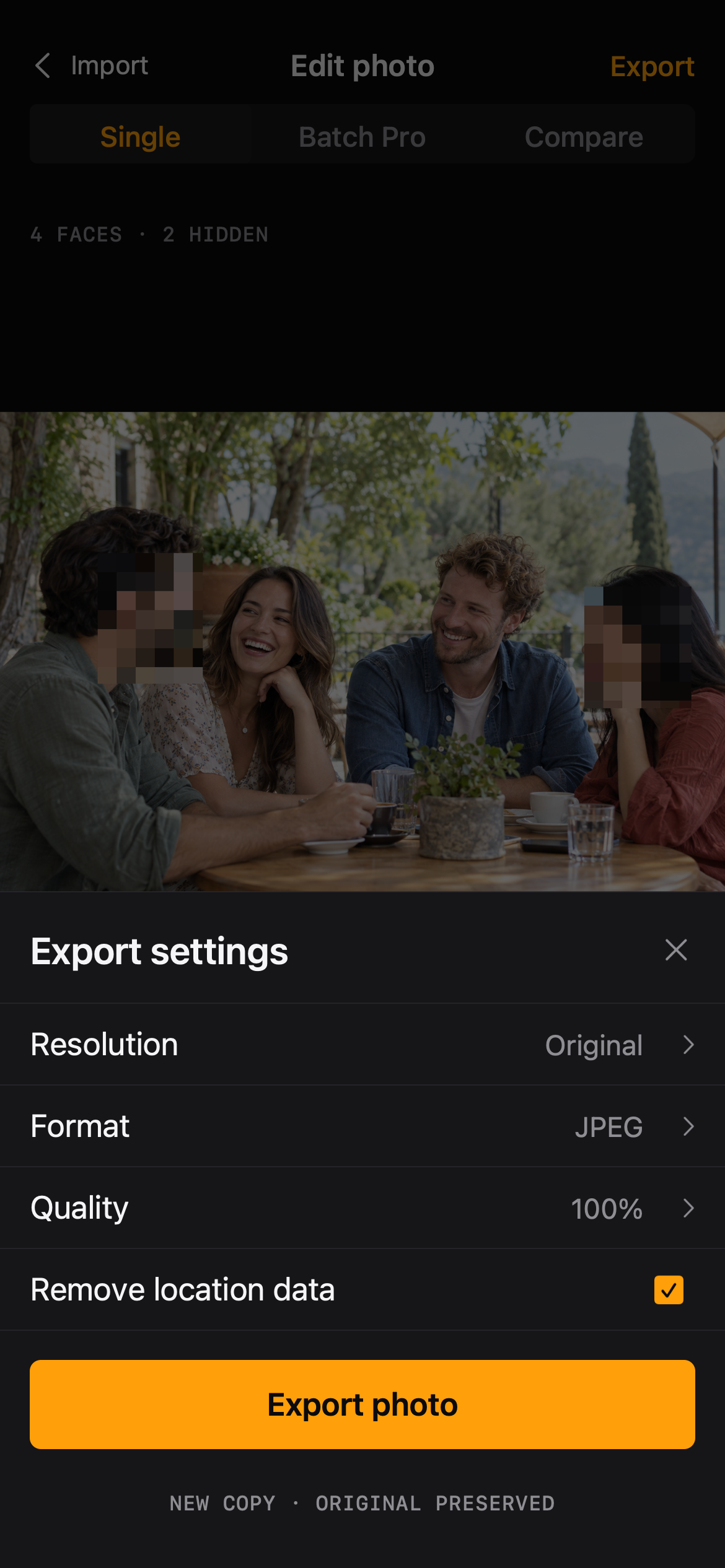
Compare answers 'what did I hide?', and export settings decide what the saved copy looks like. The original photo is never modified.
Workflow
Compare and export
01
Compare
Slide between the original and the edited photo. In batch editing, compare always shows the current photo and returns you to your place.
02
Choose export settings
Set resolution (including the original size), format (JPEG or PNG), and quality where the format supports it.
03
Remove location data
A single switch strips location information from the saved copy — useful for photos taken at home or on the move.
04
Save the copy
Blur Photo saves a new copy and shows the result. The original photo stays preserved in your library.
Compare & Export
Made for the photos you actually share
- Sharing a photo publicly where location should not travel with it
- Double-checking that only the intended faces are hidden
- Choosing quality versus file size for messaging or archiving
Compare & Export
Questions, answered plainly
- Export creates a new copy; it does not overwrite or delete the original.
- Quality applies to formats that support it (JPEG); PNG is lossless.
FAQ
Questions, answered plainly
Is the original photo ever modified?
No. The export is a separate copy — 'new copy, original preserved' is the rule for every export.
Can I export at the original resolution?
Yes. Resolution can be kept at the original size, alongside format and quality choices.
The editor