
Background Blur
Keep the subject. Blur the place.
Blur Photo separates the subject from the scene on your device, so you can blur the background — for focus, for looks, or to hide where a photo was taken.
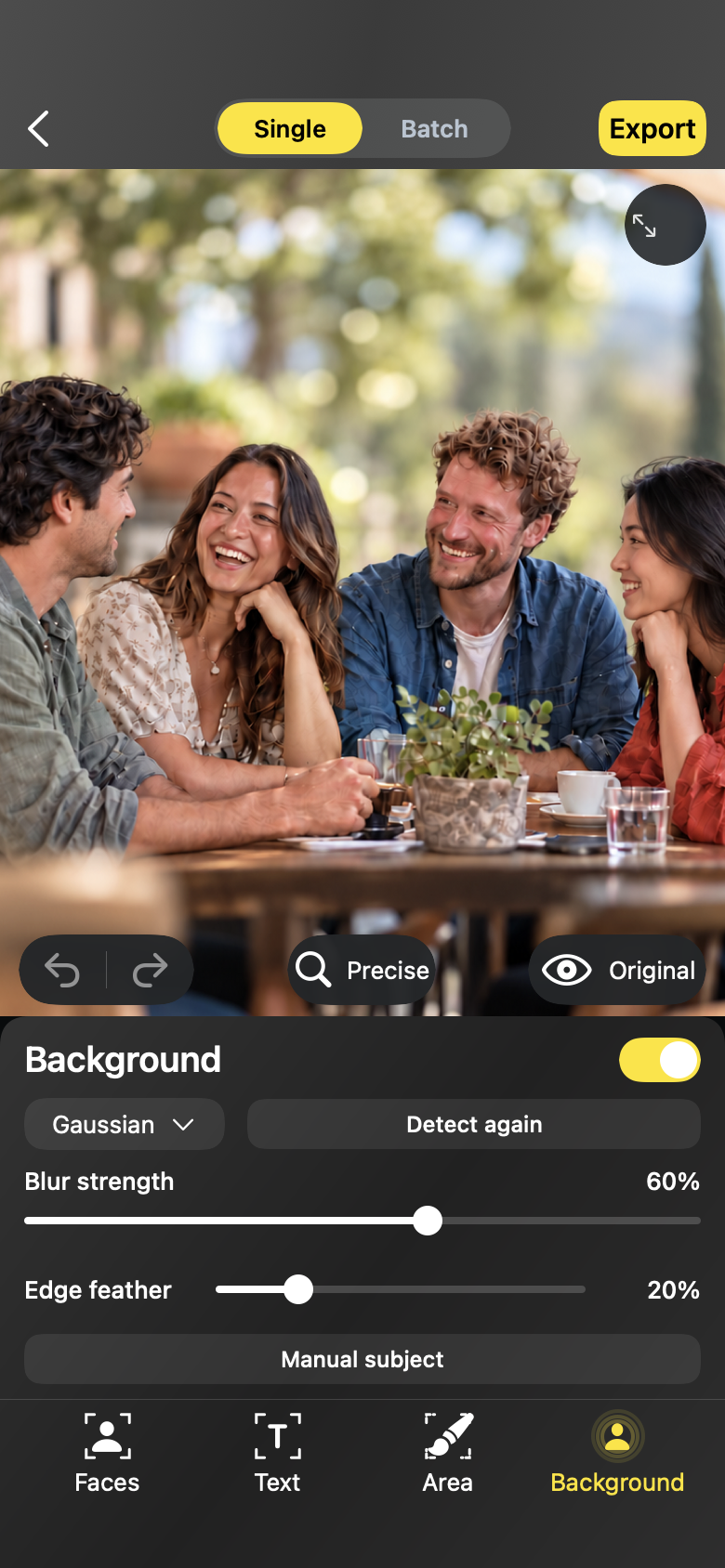
Workflow
Background blur
01
Find the subject
Auto subject detects the person or object in a tap. If the photo is tricky, Manual subject lets you refine the selection, and Detect again re-runs the search.
02
Cover the background
Everything outside the subject is covered with the effect you pick — Gaussian, motion or zoom blur, pixel, or one of the creative styles.
03
Compare and export
Hold to compare with the original, then export a full-resolution copy with location removed by default.
Background Blur
Made for the photos you actually share
- Portraits where the background is cluttered or distracting
- Photos where the location behind the subject should stay private
- Product and pet photos that deserve a clean, focused look
Background Blur
Questions, answered plainly
- Subject separation runs locally and is a starting point — refine with Manual subject and review before export.
- Background blur covers everything outside the subject selection; adjust the selection instead of painting by hand.
FAQ
Questions, answered plainly
What if the automatic subject detection is wrong?
Switch to Manual subject to adjust the selection, or use Detect again to re-run the search before applying the effect.
Does background blur hide where the photo was taken?
It hides what is visible behind the subject; location is removed from the export by default and can be retained in export settings.
The editor