Hide Any Area
For everything that isn't a face
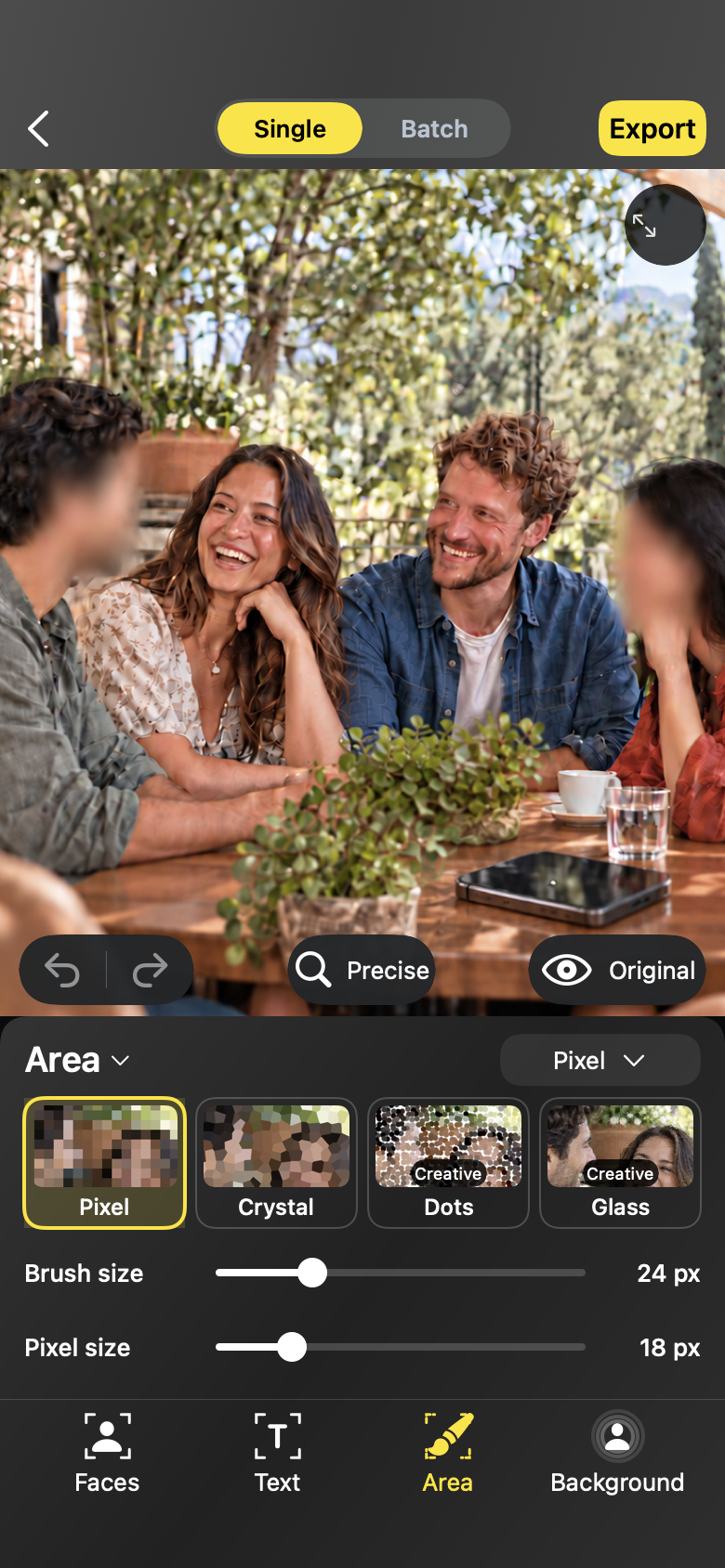
Brush over a detail, drag a rectangle, or draw a shape around it. Screens, license plates, labels, tattoos — if it's in the frame, you can cover it.
Workflow
Hide any area by hand
01
Choose a tool
Switch to Hide Any Area and pick the brush, the rectangle or a free-form shape. The brush size is adjustable for fine details.
02
Cover the detail
Paint or drag over the area. Covered strokes use the active effect and can be undone or redone like any edit.
03
Restore and refine
Painted too much? Restore area brings the original back under the stroke. Then compare and export a new copy.
Hide Any Area
Made for the photos you actually share
- Screens showing messages or personal information
- License plates in street and parking photos
- Delivery labels, documents and notes on a desk
Hide Any Area
Questions, answered plainly
- Manual edits apply to the current photo; in a batch they are never copied across photos.
- Painted strokes are stored per photo, so undo affects only the photo you are editing.
FAQ
Questions, answered plainly
Do the manual tools work together with face detection?
Yes. Face covers, text blocks and painted areas coexist in the same edit, and each area can carry its own effect.
I painted over the wrong spot — can I fix it?
Yes. Undo removes the stroke, and Restore area lets you paint the original back precisely where you need it.
The editor